How to Check Your Website in 30 Minutes
You have a website and you've spent money on it, but is it bringing the best possible results? Some owners don't notice that their website loads too slowly or that the mobile version looks broken. And many don't even suspect that there are errors in the website's code or settings.

This simple, jargon-free checklist uses free tools to help you check the basic characteristics of your website, such as speed, SEO and security.
Search results
First, find out how your website appears in search results. Type the website name and/or keywords from one of its pages into the search bar.
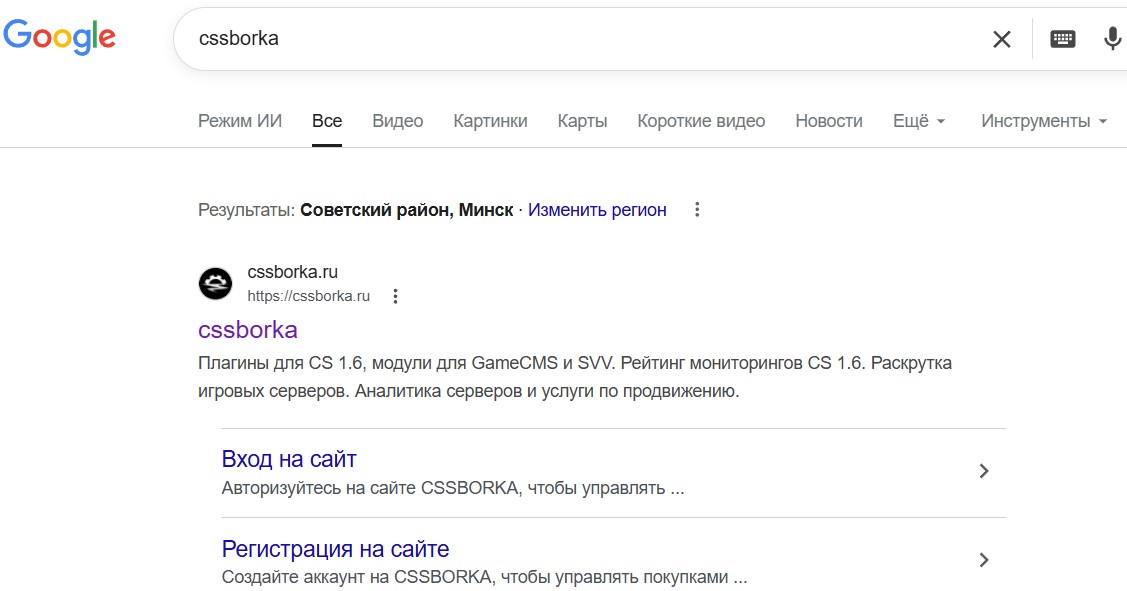
Your website should appear among the results. Here you can immediately see the icon, title, description and sitelinks. All of this should look right, because this block is the first thing users see. If the website can't be found even with the site:your_domain query, the search engine doesn't see it, and neither do users.
Loading speed
One of the most convenient tools for measuring loading speed (and more) is Google PageSpeed Insights. Just open pagespeed.web.dev and paste a link to one of your website's pages.
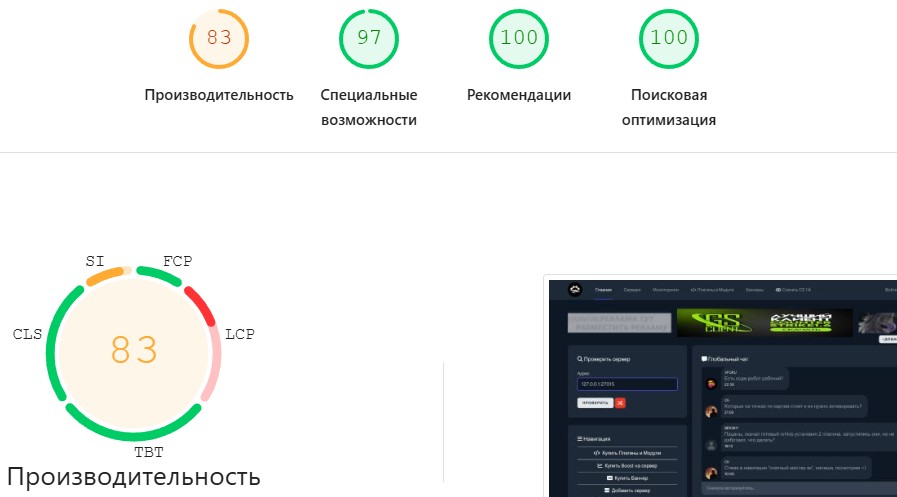
The colors of the scores speak for themselves. Usually, you can leave the website as it is if performance is above 70 on desktop and above 50 on mobile devices. If it's lower, look at Google's recommendations. Check the main pages of the website this way.
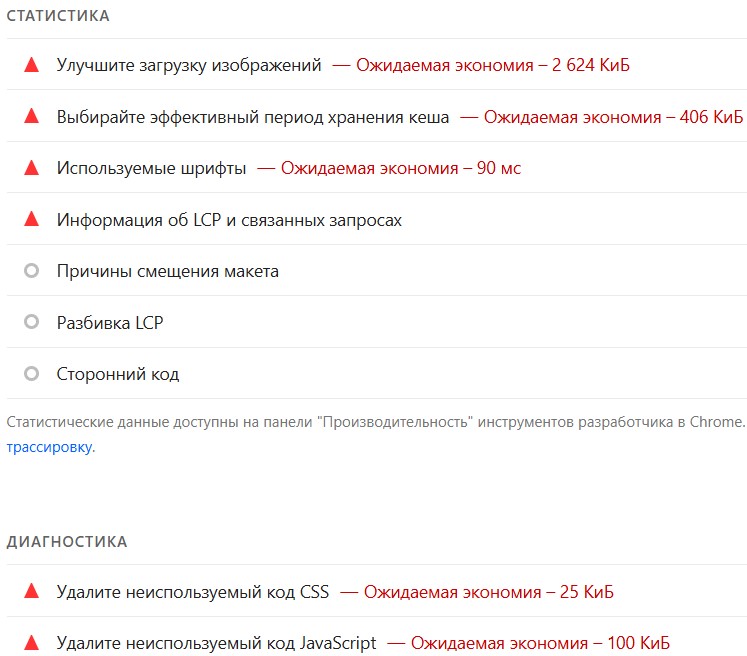
However, you don't always have to follow these recommendations completely.
First, it may take a huge amount of time.
And second, if you polish the website strictly according to Google's recommendations,
some problems may appear, such as a sudden font change or
broken pop-ups and sliders.
Google may suggest compressing an image so much that users can't make anything out.
The recommended removal of unused JavaScript and CSS on the current page to save 100 KiB
may break the product filter on another one.
For framework users, some recommendations may be impossible to follow at all.
At this stage, just make sure performance is above the values mentioned above,
and not to get upset if Google has flagged some items in red.
Search Engine Optimization (SEO)
Besides speed, Google PageSpeed Insights checks a number of basic search engine optimization (SEO) factors. The SEO score partly affects the website's ranking in search (or, more precisely, it reflects how technically ready the page is to be indexed by search engines). Google checks the heading structure, metadata, link accessibility, the robots.txt file and other characteristics. Ideally, the main pages should score the full 100 points here.
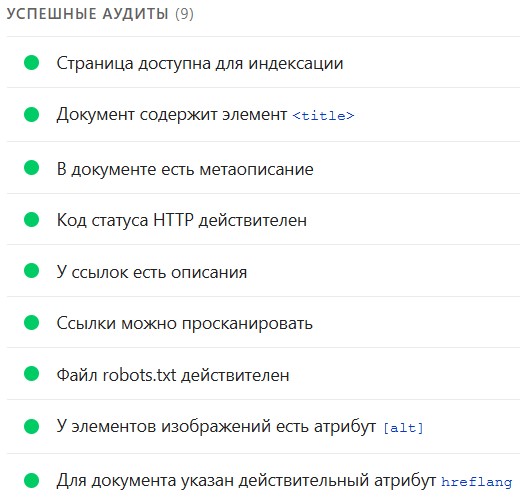
You can get a similar audit in the Chrome browser using Chrome DevTools. Open the page you need on a computer, press F12 and choose Lighthouse in the menu.
💡 Tip: run the check in incognito mode — browser extensions can slow the page down and lower the score.
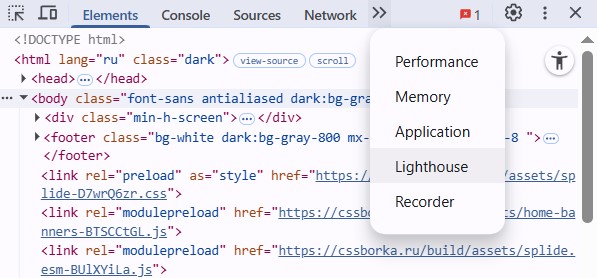
The result will be similar to the one from Google PageSpeed Insights.
Display on different devices
Users can visit from any device, so the website has to display correctly on all of them. At a minimum, the owner should check how it looks on a computer, a smartphone and a tablet. On a computer, you can emulate other devices with the already familiar Chrome DevTools. To avoid looking for the device toolbar icon, press Ctrl + Shift + M. The device toolbar will then appear at the top center.
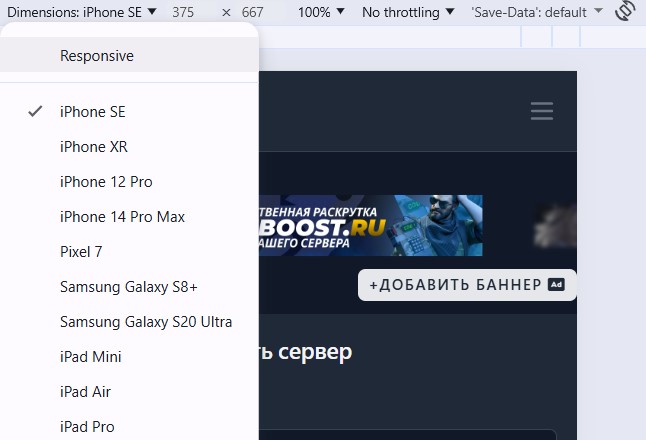
In the first drop-down list you can choose a specific device or the Responsive mode, which lets you set the screen size yourself. You can also change the zoom and rotate the device with the button on the right. These features are enough for a basic check of the website's responsiveness.
Additional checks
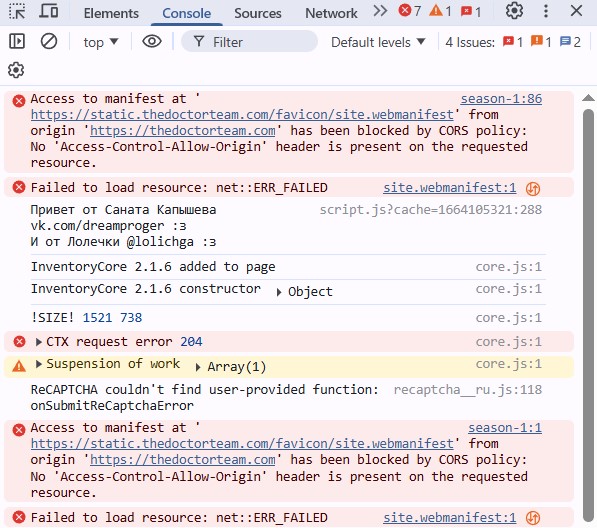
Now take a look at the Console tab in Chrome DevTools. Ideally, the console should be empty — no logs, warnings or errors. It's especially important to check the console on pages with forms or payments.
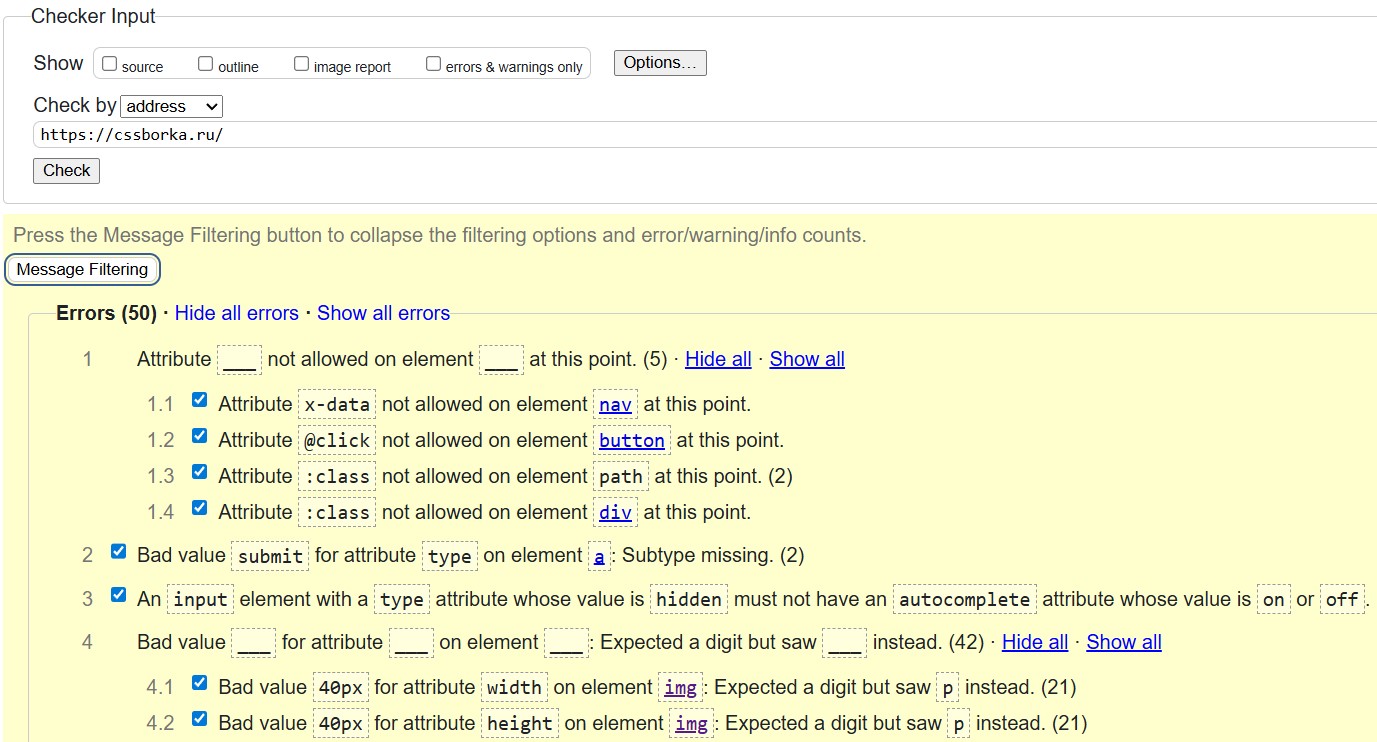
You can also check the page markup with validator.w3.org. It shows errors in the HTML structure: unclosed tags, incorrect nesting, duplicate attributes and other technical inaccuracies. Full validity is not a mandatory requirement for SEO (some frameworks use syntax that this service treats as errors), but it's worth fixing critical problems.
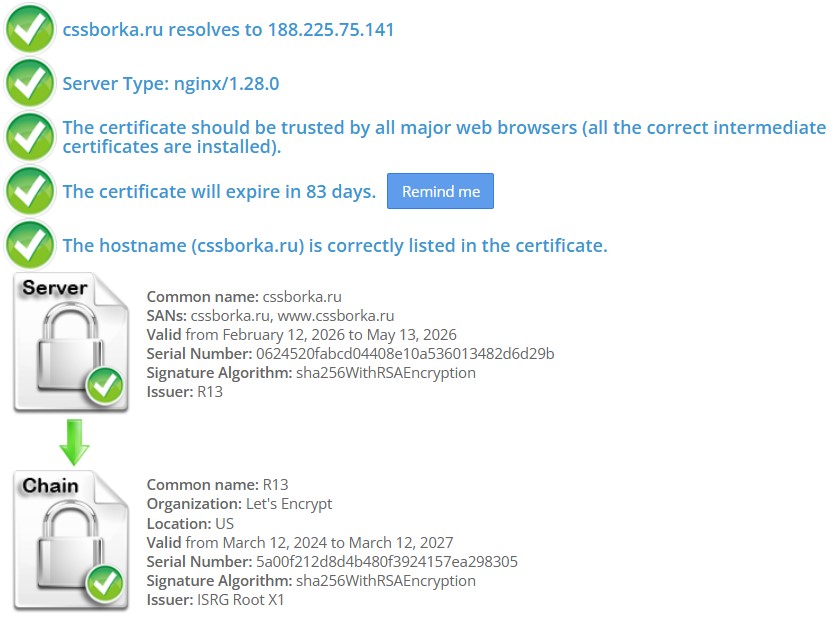
To be completely sure, check that the website's SSL certificate is trusted by all web browsers. SSL stands for Secure Sockets Layer — a security protocol that creates an encrypted connection between the server and the browser. Today the more modern TLS protocol is used instead, but the name "SSL certificate" has stuck. The SSL certificate itself is a digital certificate that confirms the website's authenticity and allows it to use this encrypted connection. You can view it with sslshopper.com.
As a precaution, if your website has an admin panel, it's also recommended to change its password regularly. No modern framework will protect a website if the password is too simple or hasn't been changed for a long time.
Summary
Check how the website appears in search, measure its loading speed with pagespeed.web.dev, analyze SEO there as well, and use Chrome DevTools to check the display on different devices.
Congratulations, you've checked your website without a developer and without diving into complicated terms! You don't need to do these checks every day — it's enough to recheck the website after updates.
👨💻 If you have any questions, my contact details are just below.
Published