How to Check a Website for Viruses
A website can be infected while its owner is the last to know: visitors complain about strange redirects, the browser shows a red warning, and search results show someone else's pages about casinos or pills instead of yours. Most often this happens because of an outdated CMS, a vulnerable plugin or a stolen password.
Let's look at the signs that a website has been hacked, how to check it with free tools and on your own hosting, and what to do if malware is found.
Signs of a hack
The owner rarely notices malware on a website: malicious code is often shown only to some visitors, for example only to those coming from search or only to mobile users. So it's worth paying attention to indirect signs:
- the website redirects to other sites, especially when visitors come from search;
- the browser or a search engine warns that the site may be dangerous;
- a site:your_domain search shows pages you never created;
- your hosting provider reports malicious files or spam sending, or suspends the account;
- the website has become slower and the server load has grown for no clear reason;
- unknown users have appeared in the admin panel.
Even one of these signs is a reason to check the website as soon as possible: search engines may lower an infected site in the results or mark it as dangerous.
Free online tools
Start with external tools: they check the website the way visitors and search engines see it and don't need access to your hosting.
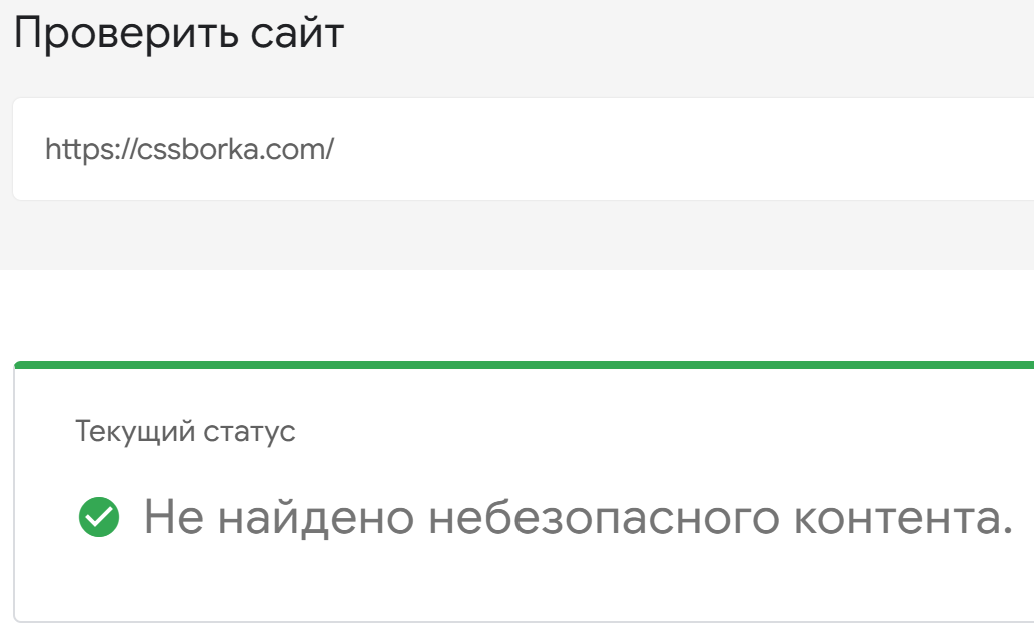
Google Safe Browsing shows whether Google considers the website dangerous. This status decides whether Chrome and other browsers show visitors a red warning before they open the site.
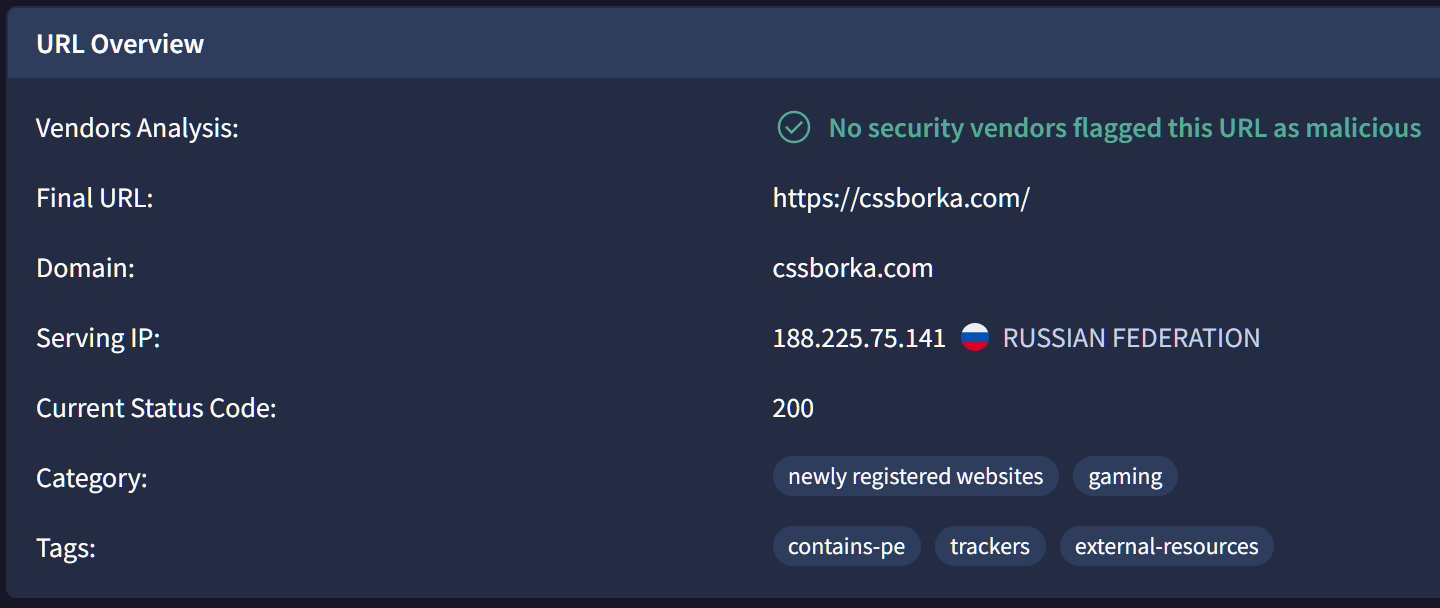
VirusTotal checks a website address with dozens of antivirus engines and reputation services at once. If several of them flag the site as malicious or phishing, there is almost certainly a problem.
Also check the Security and violations section in Yandex Webmaster and the Security issues report in Google Search Console. If search engines have found malicious code on the website, they will show what kind and on which pages.
💡 Tip: external tools only see what the website shows to visitors. If they found nothing, it doesn't guarantee there are no malicious files on the hosting.
Checking on hosting
Many hosting providers include an antivirus in the control panel — run it first. If there isn't one, you can do a basic check yourself by connecting to the server over SSH.
A hack almost always leaves traces in the files. This command lists PHP files changed in the last 7 days — if you didn't update anything during that time, take a close look at them:
find . -type f -name "*.php" -mtime -7Malicious code is usually hidden with encoding. Searching for typical constructs helps find such files:
grep -rlE "eval\(base64_decode|eval\(gzinflate|str_rot13\(" --include="*.php" .Upload folders (for example, wp-content/uploads in WordPress) should not contain PHP files at all. If they do, it's almost always a script uploaded by an attacker:
find wp-content/uploads -type f -name "*.php"Besides the files, check .htaccess for unfamiliar redirect rules and the list of administrators in the website's admin panel. A match isn't proof of infection: some plugins use these functions legitimately, so review a file carefully before deleting it.
What to do if the site is infected
⚠️ Important: before making any changes, back up the current state of the website and the database. Even an infected copy will help if something goes wrong.
First, lock the attacker out: change the passwords for hosting, FTP and SSH, the database and the website admin panel. Then remove the malicious code. The most reliable way is to restore the website from a clean backup made before the hack. If there is no such backup, delete the malicious files you found and replace the CMS and plugin files with original ones from the official websites.
After cleaning, update the CMS, plugins and themes to the latest versions, and delete the ones you don't use: otherwise the website will be hacked again through the same vulnerability. Once the website is clean, request a review in Yandex Webmaster and Google Search Console so that the security warnings are removed.
How to protect your website
Most hacks don't come from sophisticated attacks but from simple oversights. A few rules help protect a website:
- update the CMS, plugins and themes regularly;
- use unique strong passwords and two-factor authentication;
- delete unused plugins, themes and old copies of the website on the hosting;
- set up automatic backups and store them separately from the website;
- set up security headers, such as Content-Security-Policy, that restrict third-party scripts.
Summary
Watch for signs of a hack, check the website with Google Safe Browsing, VirusTotal, Yandex Webmaster and Google Search Console, look for suspicious files on the hosting, and if the site is infected, change the passwords, restore it from a clean backup and update everything.
A regular check takes a few minutes, while recovering a website and its search rankings after a hack takes weeks.
🛡 If your website has already been hacked, message me — I'll help find and remove the malware and close the vulnerability.
Published